
Before You Start #
Make sure you have access to the email address or mobile number linked to your ScaleDux account.
We’ll use it to verify your identity before allowing you to create a new password.
Step 1: Go to the Login Page #
Open the ScaleDux login page and enter your registered email address or mobile number.
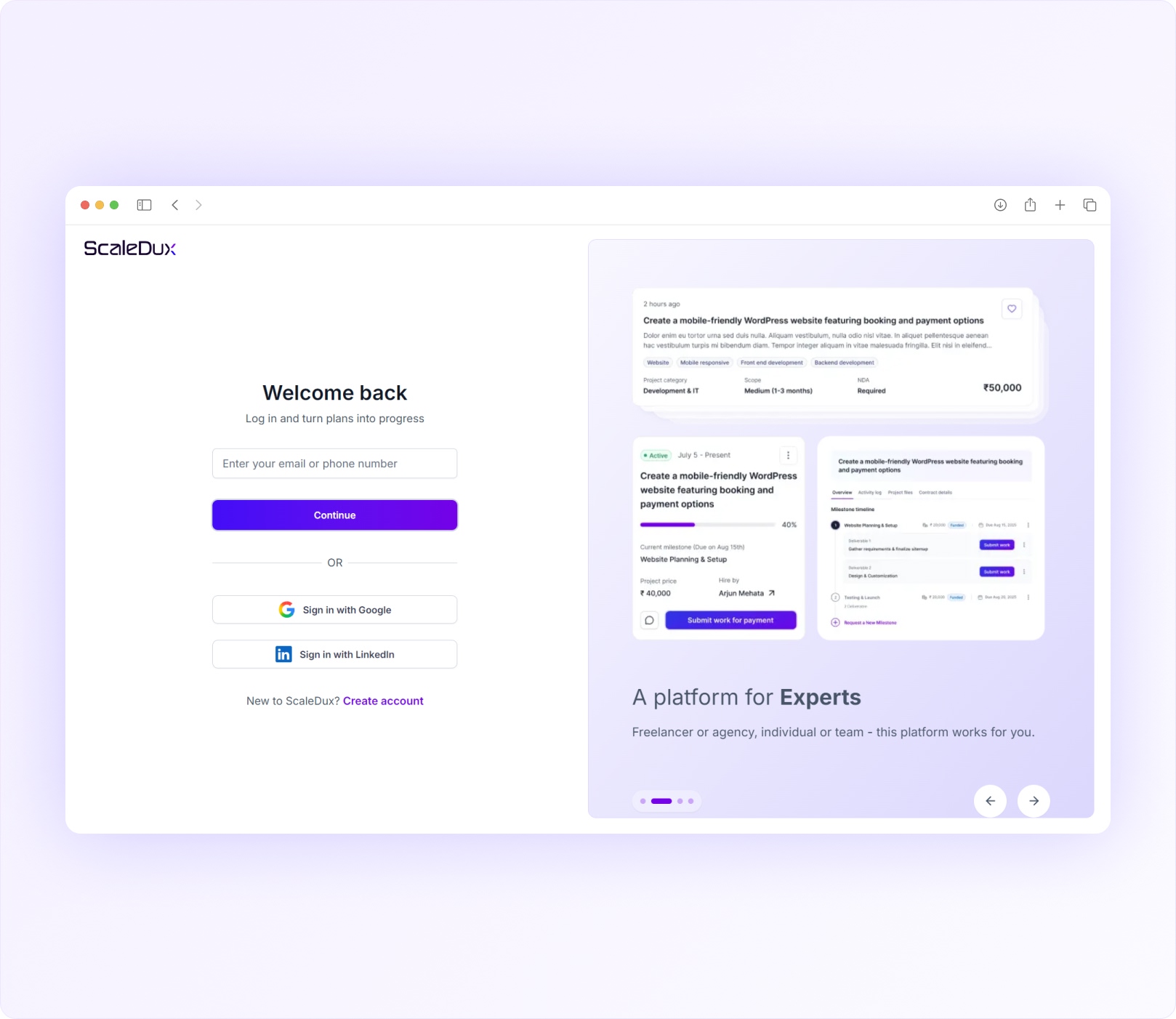
Once you’ve entered your details, click Continue.
Step 2: Click “Forgot Password” #
On the password screen, you’ll see a Forgot Password option.
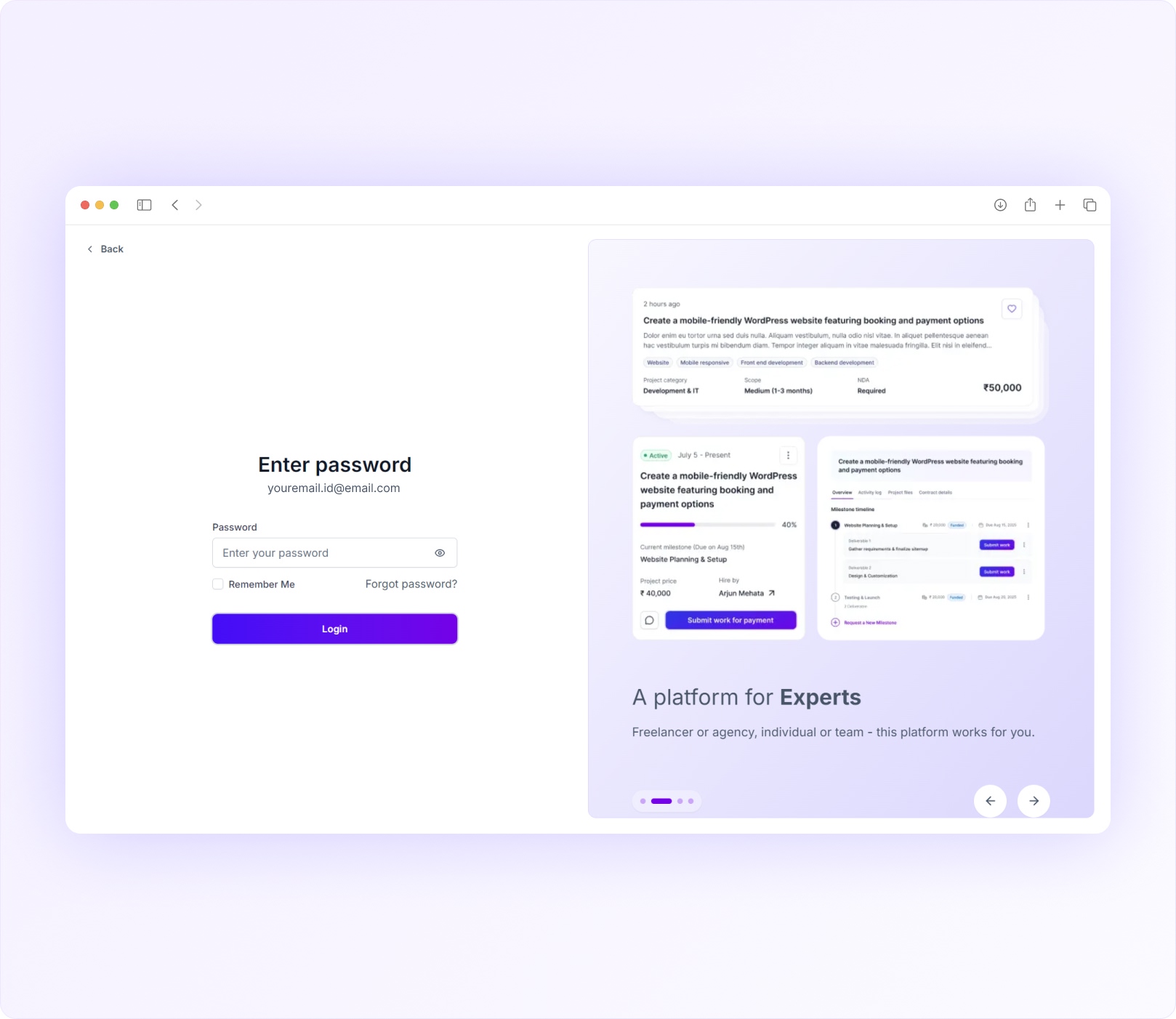
Click it to begin the password recovery process.
Don’t worry if you can’t remember your existing password. That’s exactly what this option is designed for.
Step 3: Verify Your Identity #
To protect your account, we’ll first verify that you’re the rightful account owner.
Click Send OTP and we’ll send a 6-digit verification code to the email address or mobile number linked to your account.
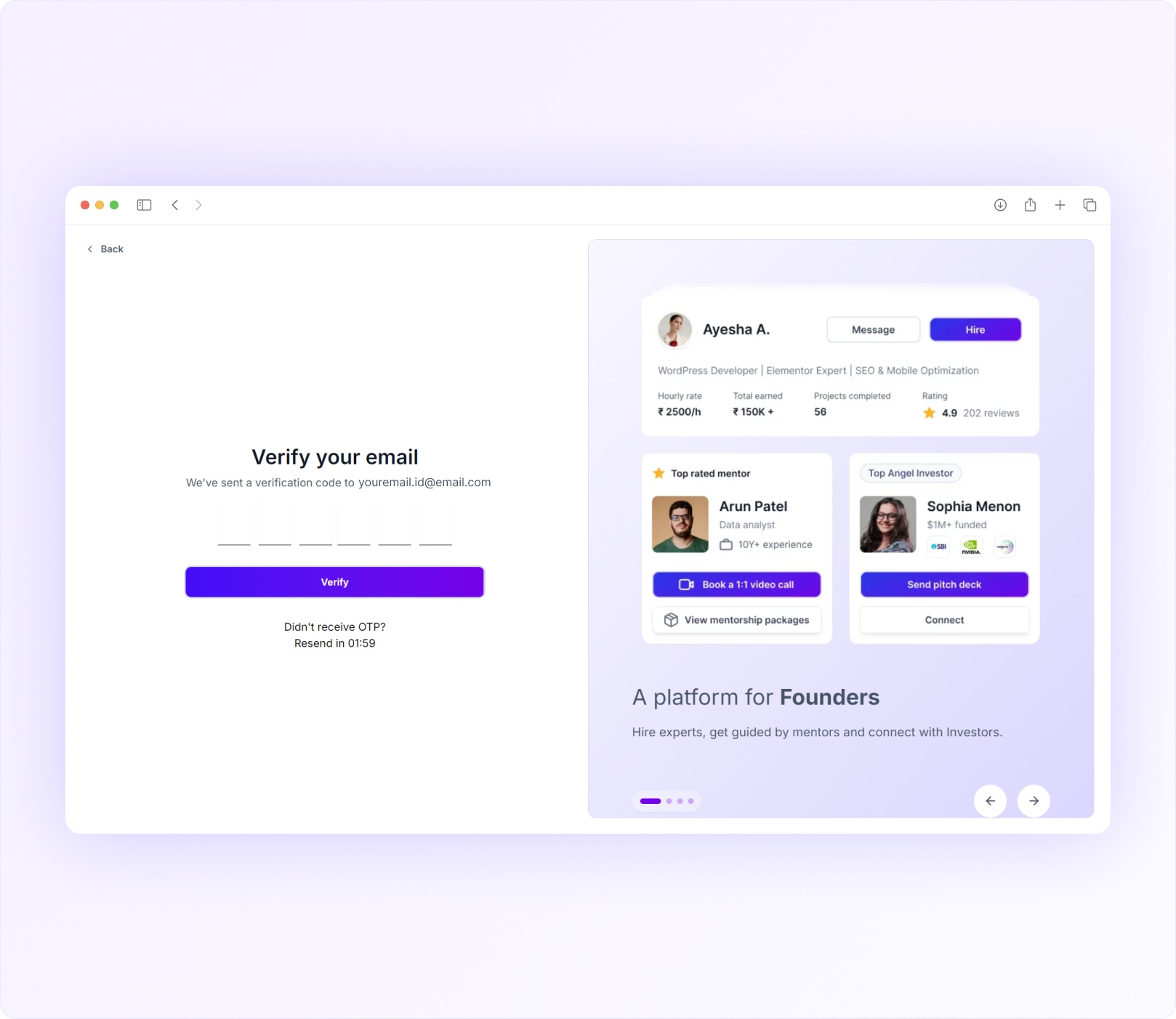
Once you receive the code, enter it and click Verify.
Didn’t Receive the OTP? #
Most verification codes arrive within a few moments.
If you haven’t received yours yet, try the following:
- Check your Spam or Junk folder if you’re using email
- Confirm that you’ve entered the correct email address or mobile number
- Make sure your mobile network is active if you’re using SMS verification
- Wait a few minutes before trying again
- If the code still doesn’t arrive, you can request another OTP once the countdown timer has finished.
Can I Resend the OTP? #
Yes. Once the timer expires, you’ll see the Resend OTP option.
For security reasons, you can request a new OTP up to three times during a reset attempt. If you’re still unable to receive the OTP after multiple attempts, please wait for the time shown on the screen before trying again.
If the issue continues, contact the ScaleDux support team for assistance.
Step 4: Create Your New Password #
After successful verification, you’ll be taken to the password reset screen.
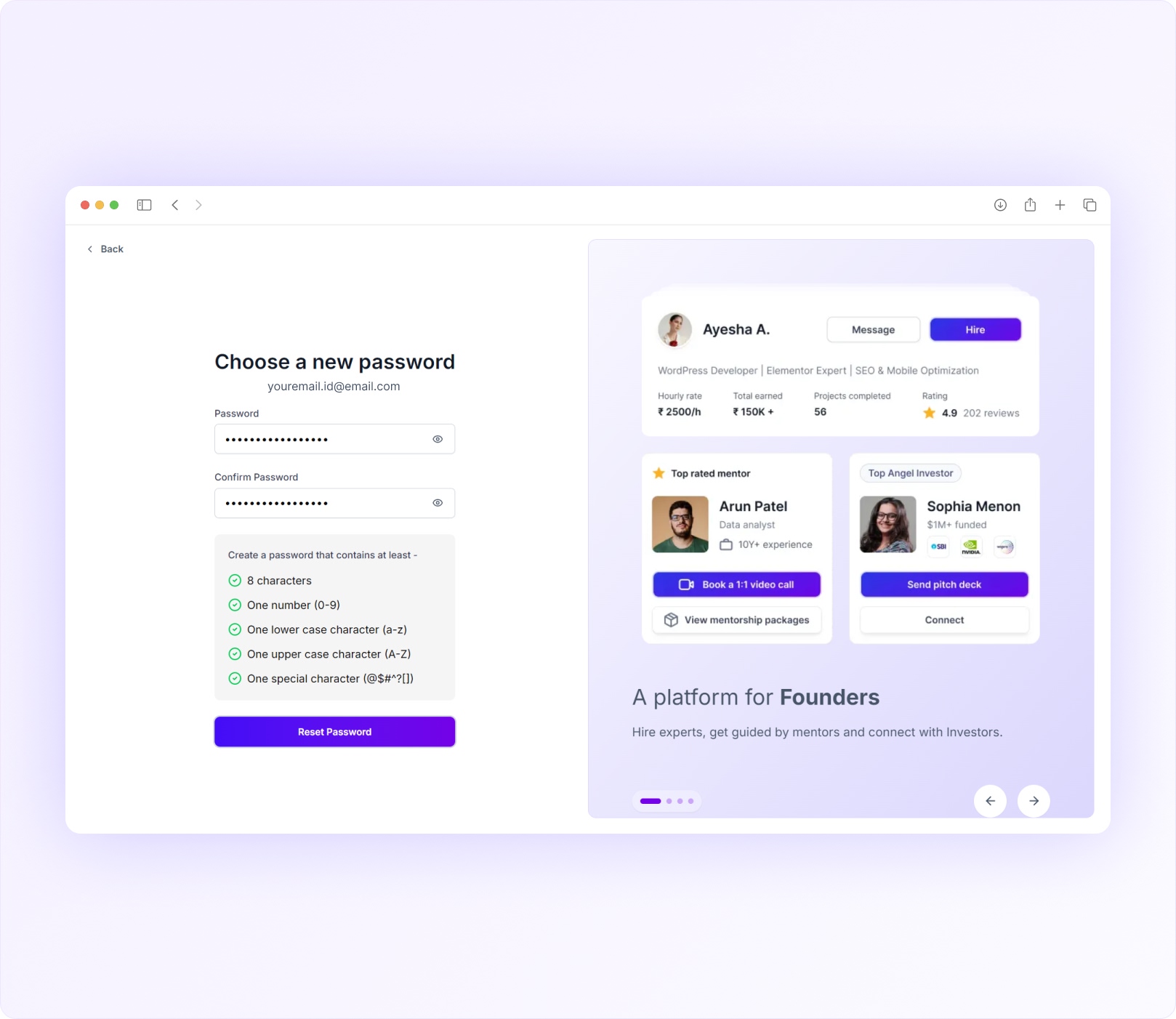
Enter:
- Your new password
- Confirm password
To keep your account secure, your password must meet all password requirements displayed on the screen.
As you type, you’ll see which requirements have been completed.
Before Resetting Your Password #
Please make sure:
✓ All password requirements have been completed
✓ Password and Confirm Password match exactly
✓ You’re using a password that is easy for you to remember but difficult for others to guess
Step 5: Reset Your Password #
Once everything looks good, click Reset Password.
We’ll update your password immediately and display a confirmation message.
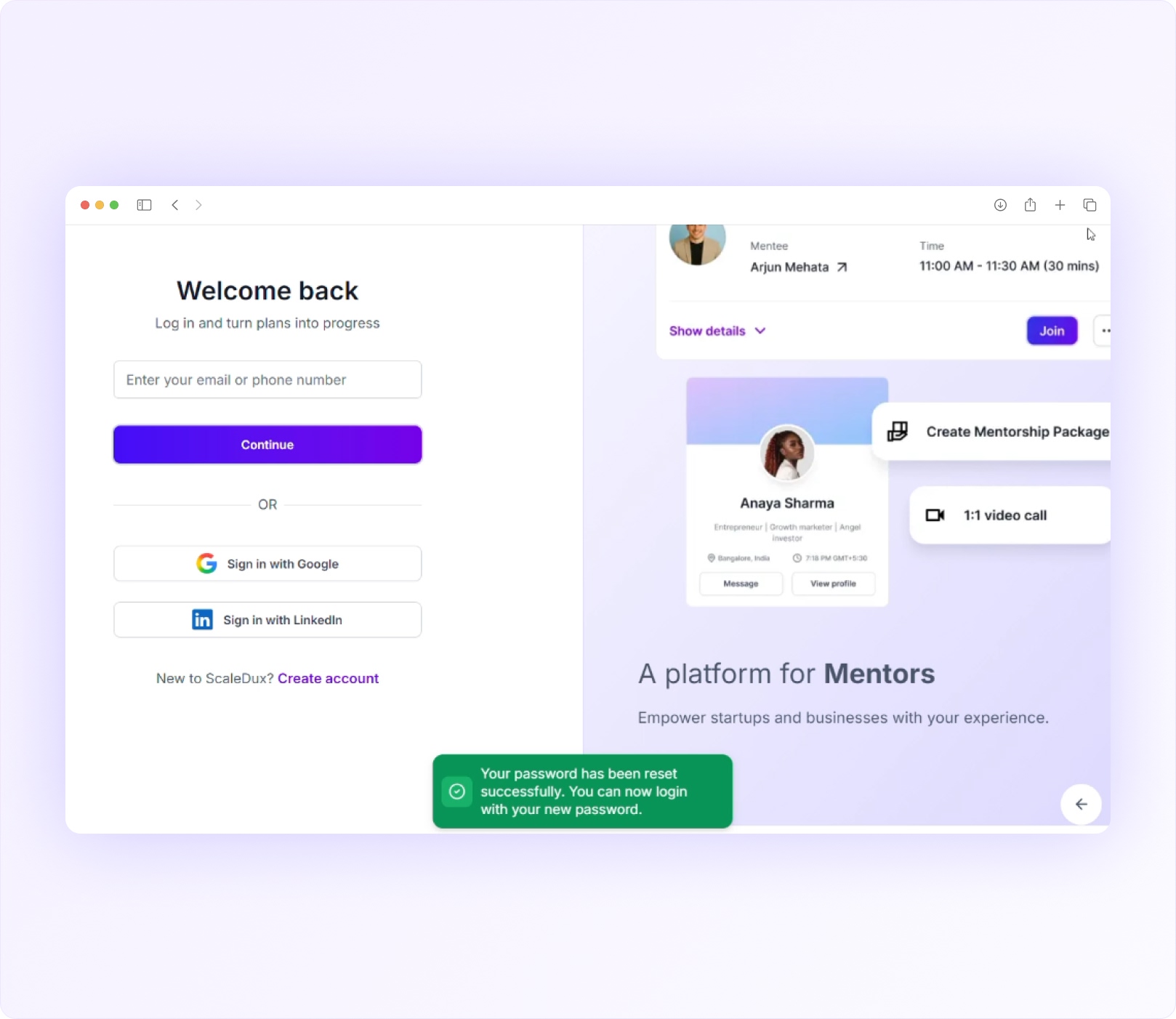
You can now return to the login page and sign in using your new password.
Password Reset Successful #
If you see the success message, your password has been updated successfully.
From now on, use your new password whenever you sign in to ScaleDux.


